App usage report
How it works
The App Usage Report shows which Fiori apps are used most often in your system. It helps you quickly see which apps users open, how often they use them, and which apps are most important. Both standard and custom apps are included.
List of most frequently used apps
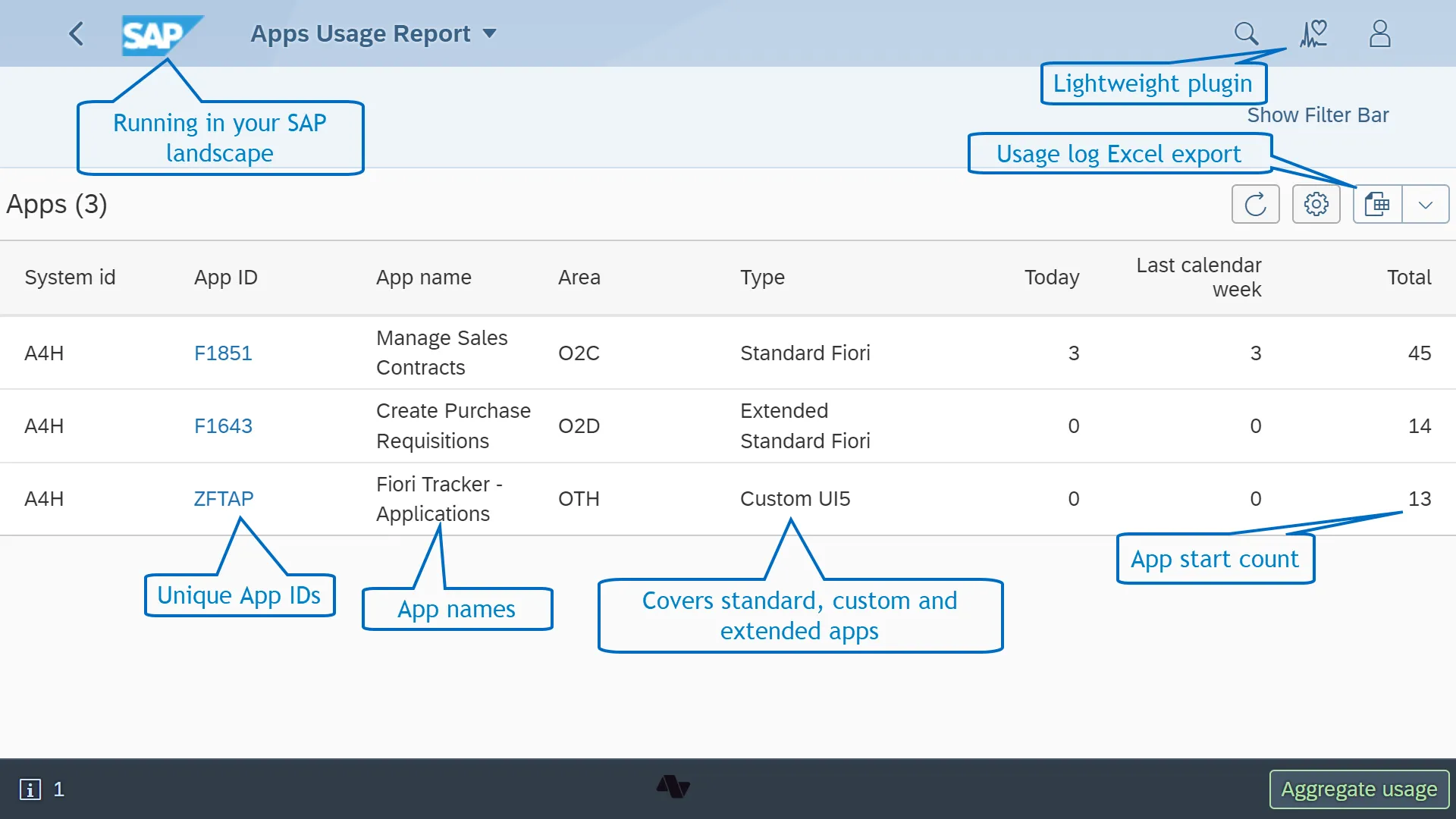
The list contains all apps that users started in the particular system. Each row on the list represents the started app together with the following details:
- System ID
- Application name
- Application ID
- Semantic object
- Semantic action
- Number of hits Today
- Number of hits in the last calendar week
- Total number of starts
- In scope flag
The following app's details are propagated based on the Specifications records kept and maintained in the Fiori Tracker app: FT Applications:
- Application name
- Application ID
Out of scope applications
If an app does not have a specification record, it is marked as Not in scope (the In scope flag is empty). This helps you clearly see which apps are outside your project scope.
For out-of-scope apps, the report shows only the Application name and Application ID.
To fully identify an app and include it in the report, you must maintain its specification record. By doing so, you confirm that the app is part of the project scope and that you support and track it.
Filtering
The report offers the following filters to allow you to categorize applications by functional area and application type, as well as identify applications outside the project's scope.

Filtering on Functional Area
Filtering on Application Type - e.g., generating a list of Custom UI5 apps only).
Identifying Applications Outside Scope - by filtering usage records without application ID, you will obtain a list of applications that fall outside the project scope.
Records export
Fiori Apps Usage Report offers raw usage records export in Excel format. Export function lets you prepare statistic reports and data visualizations with your favorite analytical tool.
The function is available from the App Usage Admin app:


Cleaning tool
Old usage records can be removed with cleaning tool. The cleaning tool is available from Administration tool started with transaction ZFACENADMIN. To launch the tool start the transaction and choose function 3. Clean old usage records:

The cleaning tool has two input fields:
- System ID - specifies the system for which you want to delete the records
- Created before this date - It allows you to define the cut-off date. All records saved prior to this date will be deleted.

Configuration
To change Central part configuration start the transaction ZFACENADMIN and press button labeled: 2. Edit configuration. This action will open a configuration screen:

The table below describes all available parameters:
| Key | Value | Description |
|---|---|---|
| ACTIVATION_KEY | key | Value is provided by Nype team |
| INCOMP_HIDE | TRUE | When set to TRUE the version compatibility warning will not show |
| LOGMODE | FULL | Plugin will write down usage records only when this parameter is set to FULL. Delete this parameter to stop writing usage records. This allows stopping log collection without removing user's Fiori App Usage role. |